


Field Guide № 05 · Your closet
Import your wardrobe from a rack.
The slowest part of any wardrobe app is adding clothes one photo at a time. Skip it — shoot the whole rack in one go and let the AI do the sorting.
01
Open your Wardrobe, then shoot once.
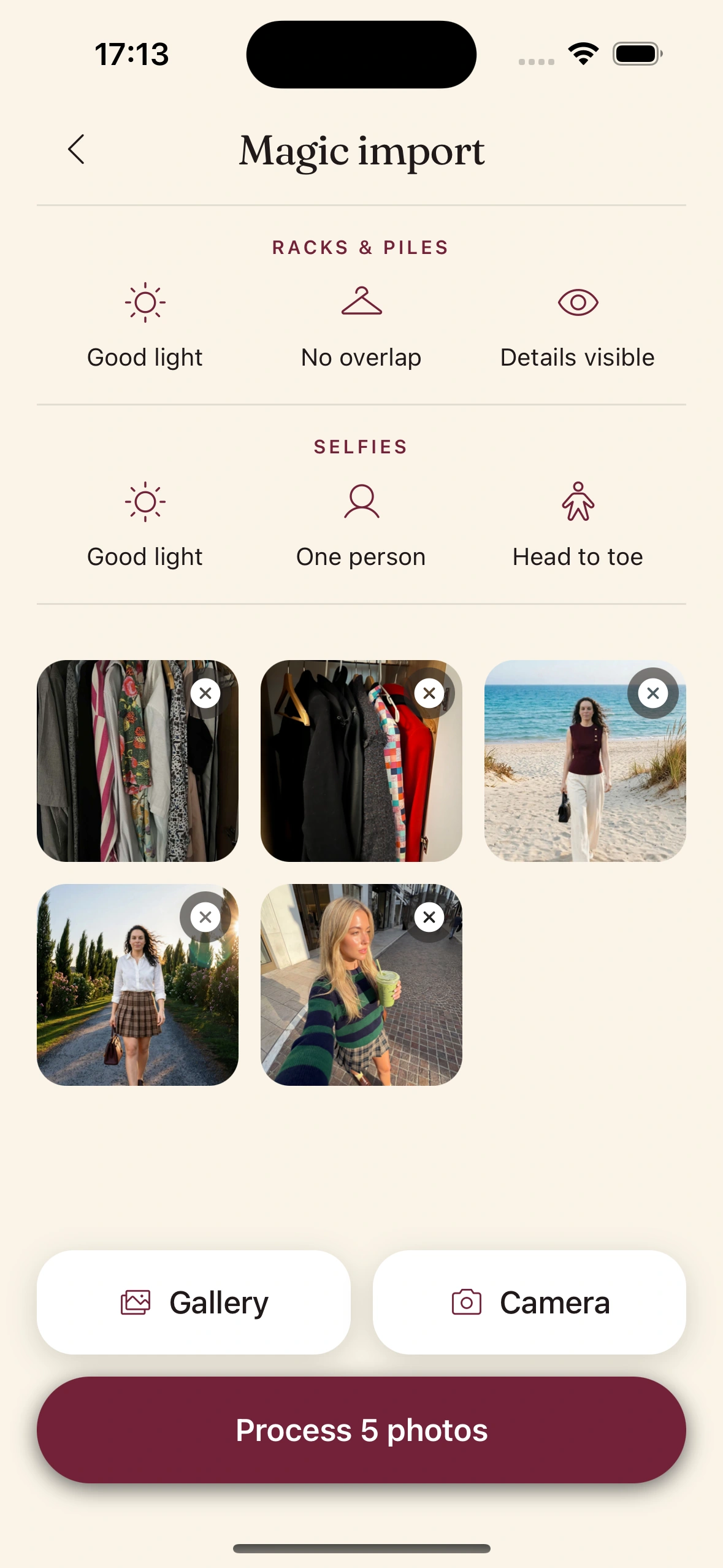
Open the Wardrobe tab, tap the camera, and choose the rack or worn-outfit option. Spread a pile flat or hang the rack with a little space between pieces, in even light.
Then take a single photo of the whole thing. No need to isolate each garment — that's the AI's job. A wearing-it selfie works too: shoot the full outfit you have on and Clottr pulls the top, bottom, shoes, and layers apart.
02
Watch it separate the pieces.
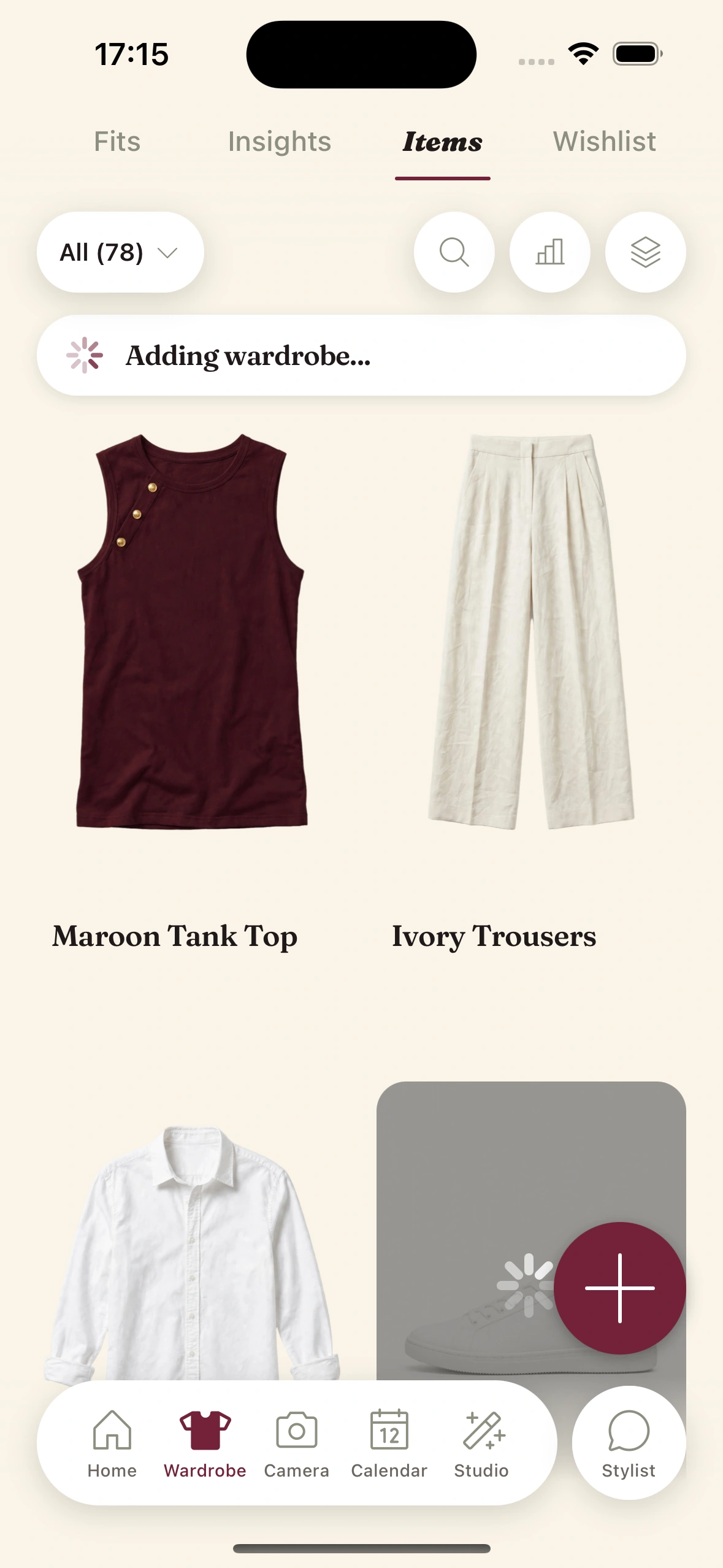
Clottr detects each garment in the frame and turns it into its own clean, flat-lay cutout — background removed, ready to use. A rack of a dozen items becomes a dozen wardrobe entries.
You get a review grid before anything saves. Deselect anything that isn't yours or didn't extract cleanly, then keep the rest. If a couple of pieces were hidden behind others, snap a quick second photo — the import continues from where it left off.
03
Automatically Tagged.
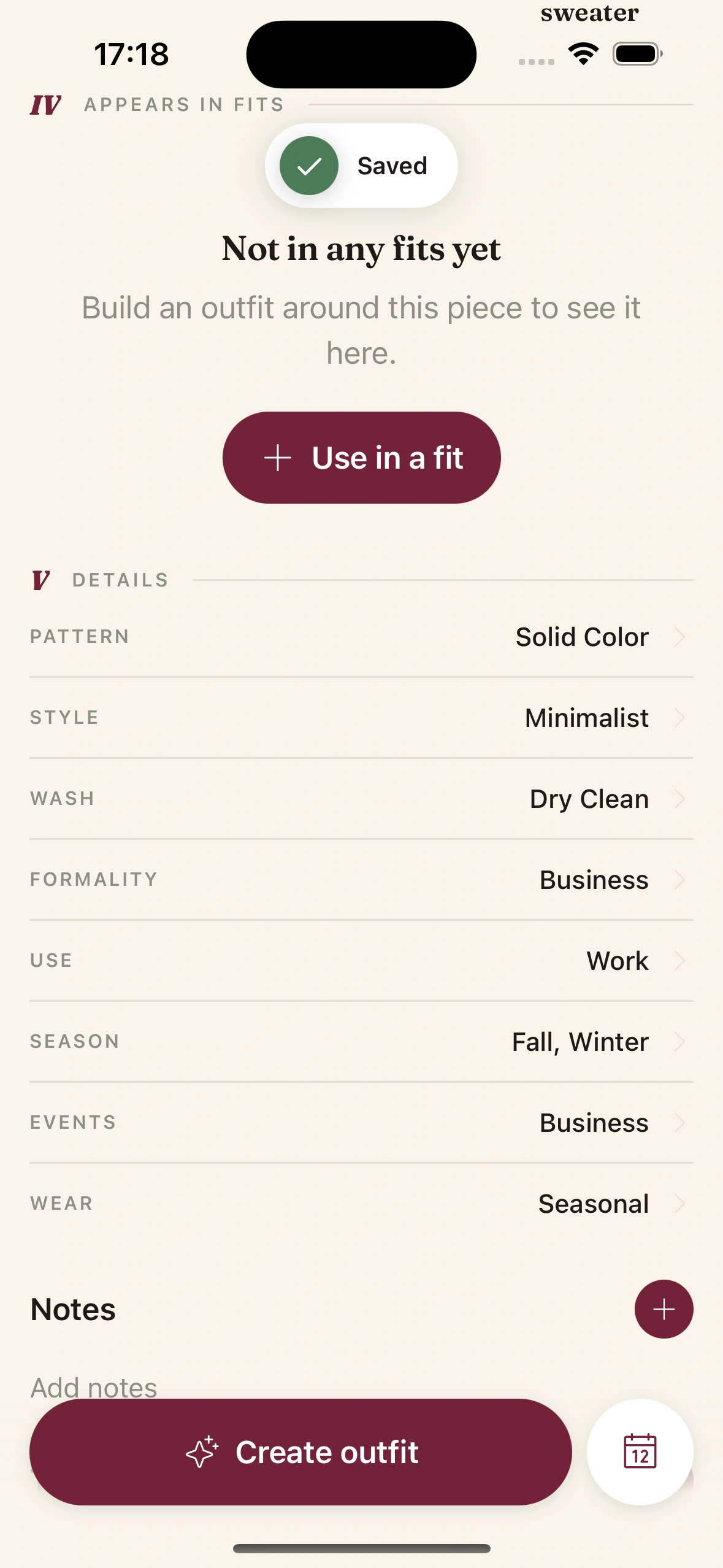
Every extracted item arrives already tagged — category, color, material, season, formality, and more. No typing. Skim them, fix anything that reads wrong (a "navy" that's really black, a "shirt" that's a jacket), and move on.
These tags are what let the AI reason about your closet later — build outfits, spot gaps, and calculate cost-per-wear. Duplicates are already filtered out, so you won't end up with the same tee twice.
04
Your closet is live.
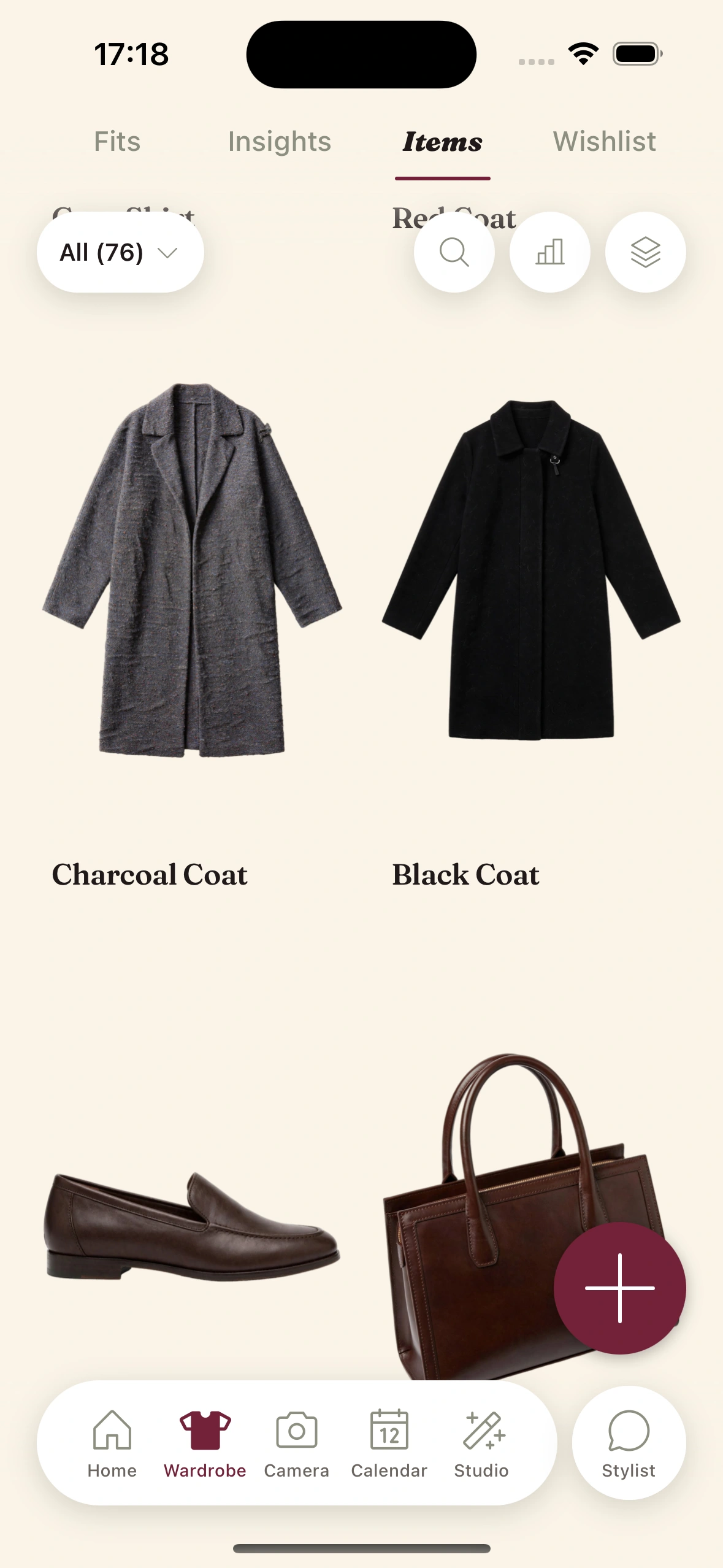
That's it — a searchable digital wardrobe in one sitting instead of a week of nightly uploads. Everything you just imported now powers daily fits, virtual try-on, trip packing, and Should I Buy.
Buying online later? The browser extension adds new pieces to this same closet in one click from any store, so it stays current without another rack session.
Tips & gotchas
Get a clean import on the first try.
Give the pieces room.
Heavy overlap is the one thing that trips extraction up. A hand's width between hangers, or a loosely spread pile, and the AI separates everything cleanly.
Light beats resolution.
A bright, evenly-lit photo from an old phone imports better than a dim shot from a new one. Face a window, avoid harsh shadow, and the cutouts come out crisp.
Do it in batches.
Don't try to fit forty items in one frame. Shoot a shelf, a rack, a drawer — five or six photos of ten pieces each is faster and cleaner than one crowded mega-shot.
Already have a Pinterest board or order history?
The browser extension can bulk-import a page of images too — a brand's site, your order history, a saved board — with the same de-duplication. Handy for the pieces you own but aren't in the room.
Keep reading

Feature
Digital Wardrobe
Everything the imported closet unlocks — search, cost-per-wear, and auto-tagging.

Guide
Set up your try-on photo
Add one selfie so you can see every imported piece on your own body.

Guide
Set up your daily fit
With the closet imported, get a styled outfit every morning.

Blog
Best Wardrobe Apps in 2026
How Clottr's import and try-on compare to Whering, Indyx, and more.
Frequently Asked Questions
How do I add my whole wardrobe to Clottr at once?
Photograph a rack, a pile, or a worn outfit in a single shot and Clottr's AI detects and extracts every garment as its own clean, tagged item. You can also bulk-import a page of product images with the browser extension. It beats photographing each piece one at a time.
Can Clottr pull separate clothes out of one photo?
Yes. From a single photo of a rack or an outfit you're wearing, the AI finds each garment, removes the background to a flat-lay cutout, and adds it as an individual wardrobe item — top, bottom, shoes, and layers all separated automatically.
Will importing a rack create duplicates?
No. Clottr hashes each extracted image and checks it against what's already in your closet, so garments that appear across multiple photos — or that you've already added — are skipped rather than duplicated.
What makes a good rack photo?
Even light, a little space between pieces, and garments facing the camera. Avoid heavy overlap and deep shadow. If two items are stacked and one gets missed, just snap a second photo of the leftovers — the import picks up where it left off.
How many clothes do I need to import before Clottr is useful?
Around 30 items is enough for varied daily outfits; 50-60 is the sweet spot. A rack import usually gets you there in one sitting, which is the whole point — the faster your closet is complete, the sooner the recommendations stop repeating.
What if the AI tags a piece wrong?
Open the item and edit any field — category, color, material, formality, season. Corrections are one-off and stick, and they make future recommendations and cost-per-wear numbers more accurate.
Build your closet in one sitting.
Join early. Discounted for life.