


Field Guide № 07 · Rotation
Wear more of what you own.
Get your whole closet into Clottr, let Daily Fit plan your mornings, and log what you wear. Wardrobe Insights then shows you what you reach for, what you skip and which forgotten pieces suit today.
01
Get your whole closet in.
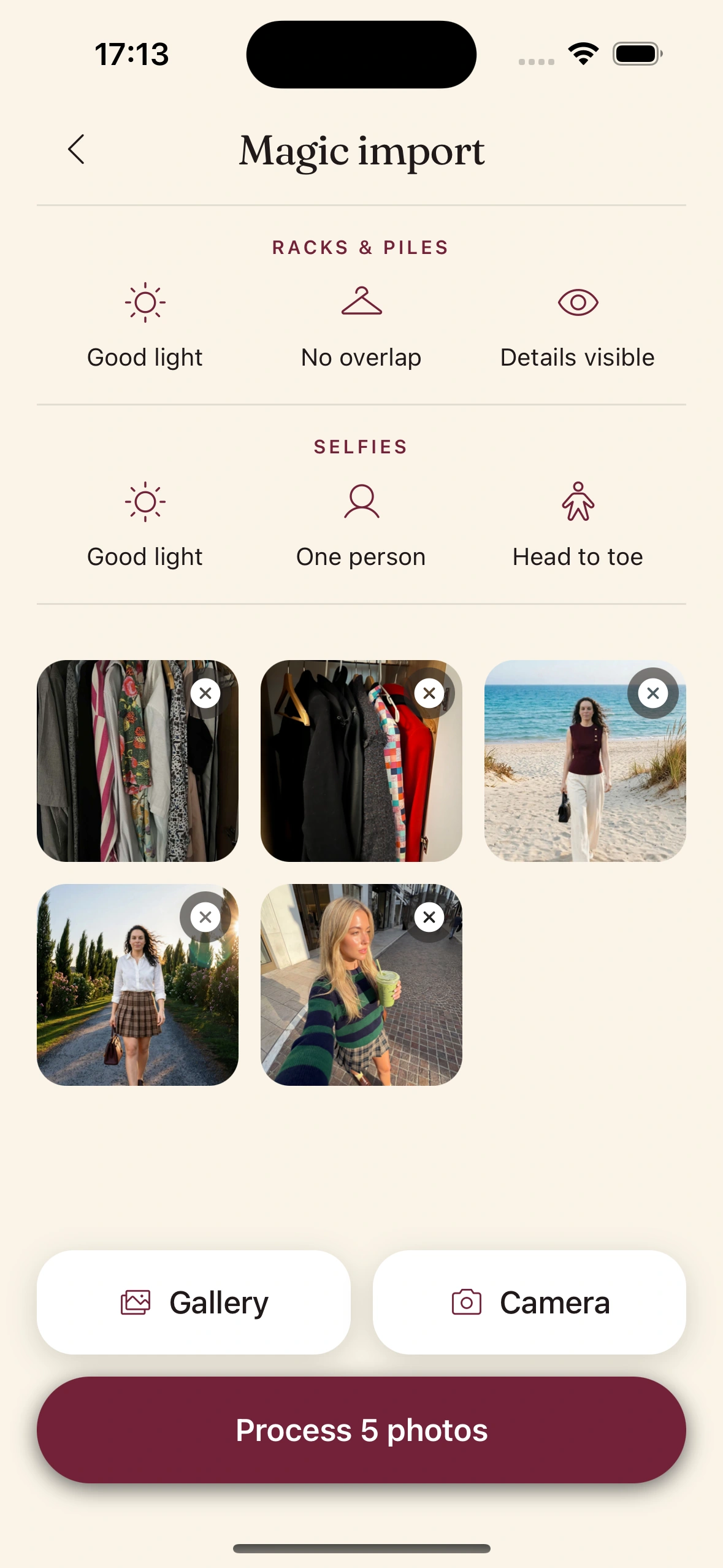
Clottr can only suggest what it knows you own. Open Magic import and add photos of whole racks, piles or outfits you've worn, from the camera or your gallery. Each garment comes out as its own item, with the background removed and the tags filled in.
About 30 items is enough to start; 50-60 is the sweet spot. Single pieces and product images from any online store work too, and the rack import guide has tips for clean photos.
Don't stop at your favorites. The pieces you rarely touch are what this guide is about, so photograph those too.
02
Check the tags, formality first.
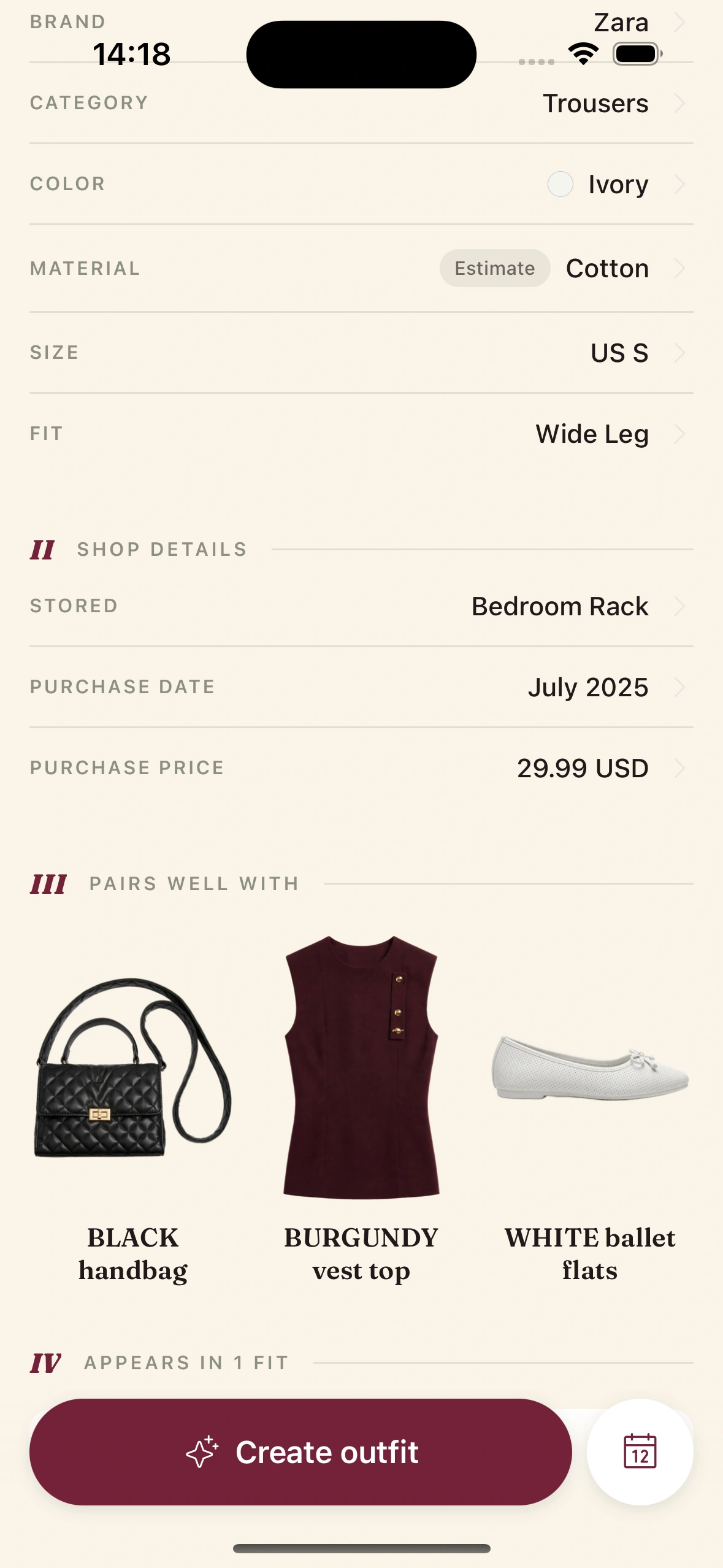
Every piece is tagged across roughly 19 attributes, from category, color and material to fit, formality and season, and every tag is editable. Open a few pieces and fix anything that reads wrong.
Look hardest at formality. Formality match is one of the seven checks every outfit Clottr suggests has to pass, so a piece tagged more formal or more casual than you actually wear it can keep missing the days it suits. Filter the closet by formality and scan each group for strays.
03
Read your first Insights.
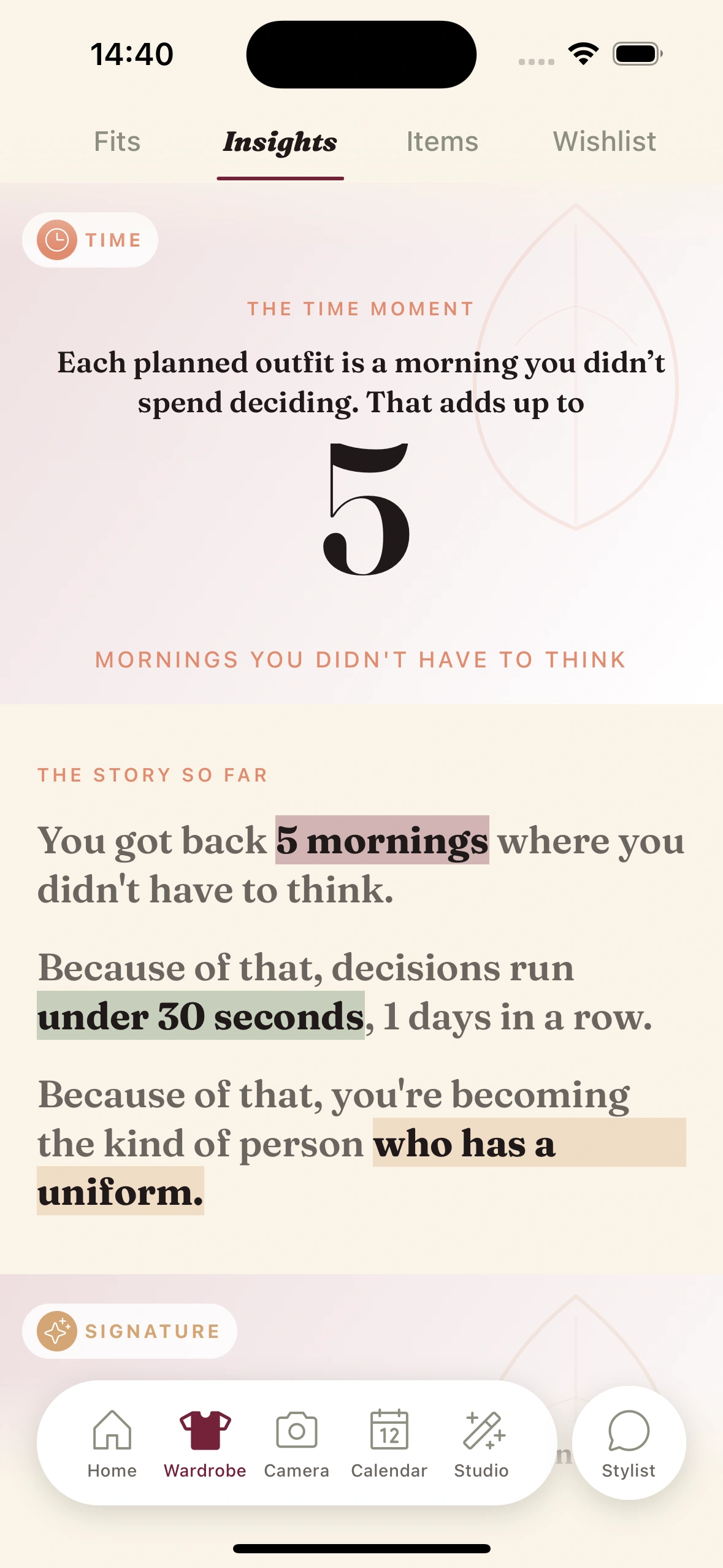
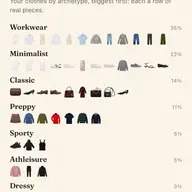
In the Wardrobe tab, open Insights. It reads your closet back to you: your palette by color family, what you wear and how often, cost-per-wear on each piece, and Deep Cuts. A weekly recap lands on Monday.
Treat the first week as a baseline, not a verdict. Insights only knows the wears it has seen, so it starts thin and gets more useful as wear data builds up. The Insights guide walks through each part.
04
Build a day around a Deep Cut.
Deep Cuts in Insights shows pieces you haven't worn lately that suit today: a linen shirt on a warm day, say, not a wool coat in a heatwave. It's the quickest win in this guide, because the piece is already yours and already right for the weather.
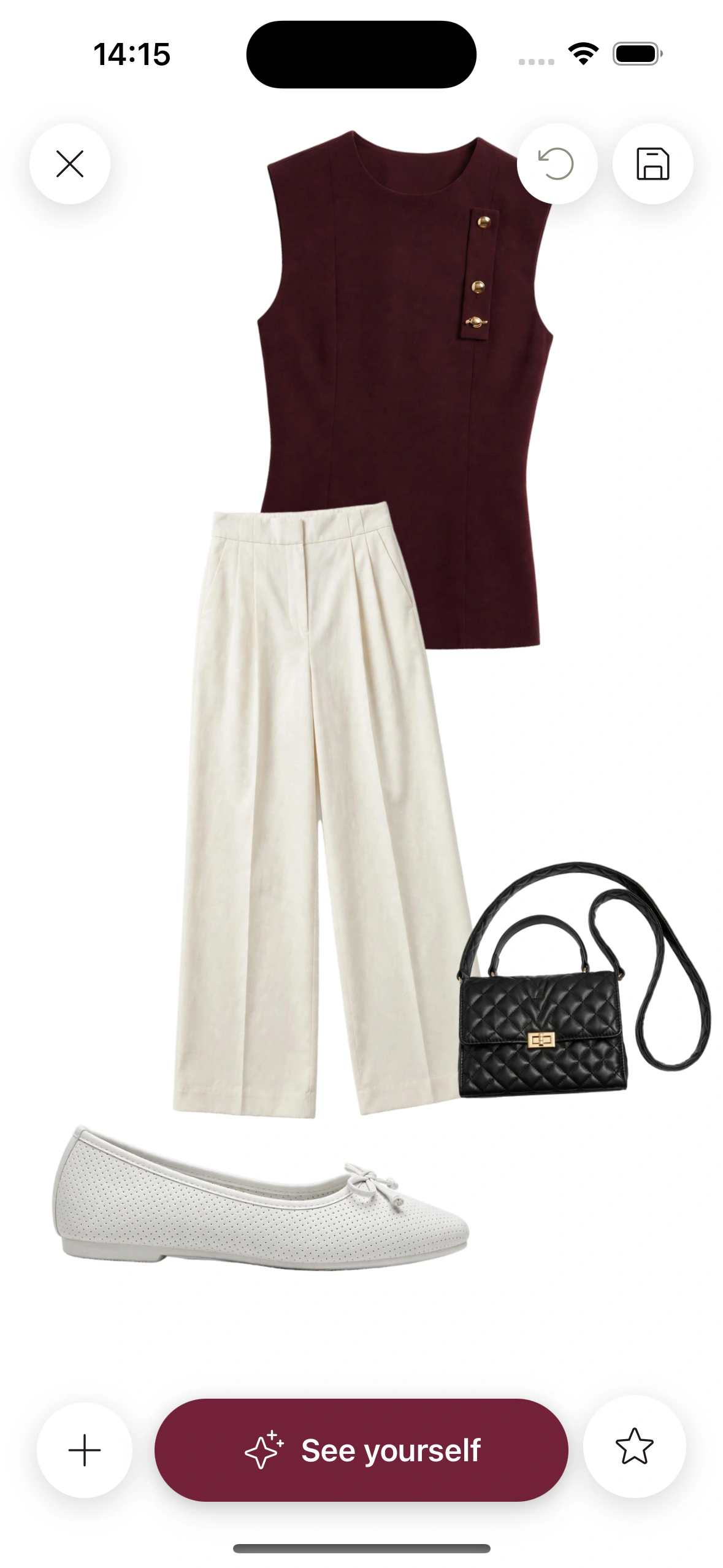
Pick one and build the outfit around it on the canvas, adding whatever it needs from your closet: tops, bottoms, shoes, accessories. Tap See yourself to see the whole look on you. Unsure? Rate My Outfit scores it on seven dimensions, from color harmony to seasonal fit.
05
Let Daily Fit plan your mornings.
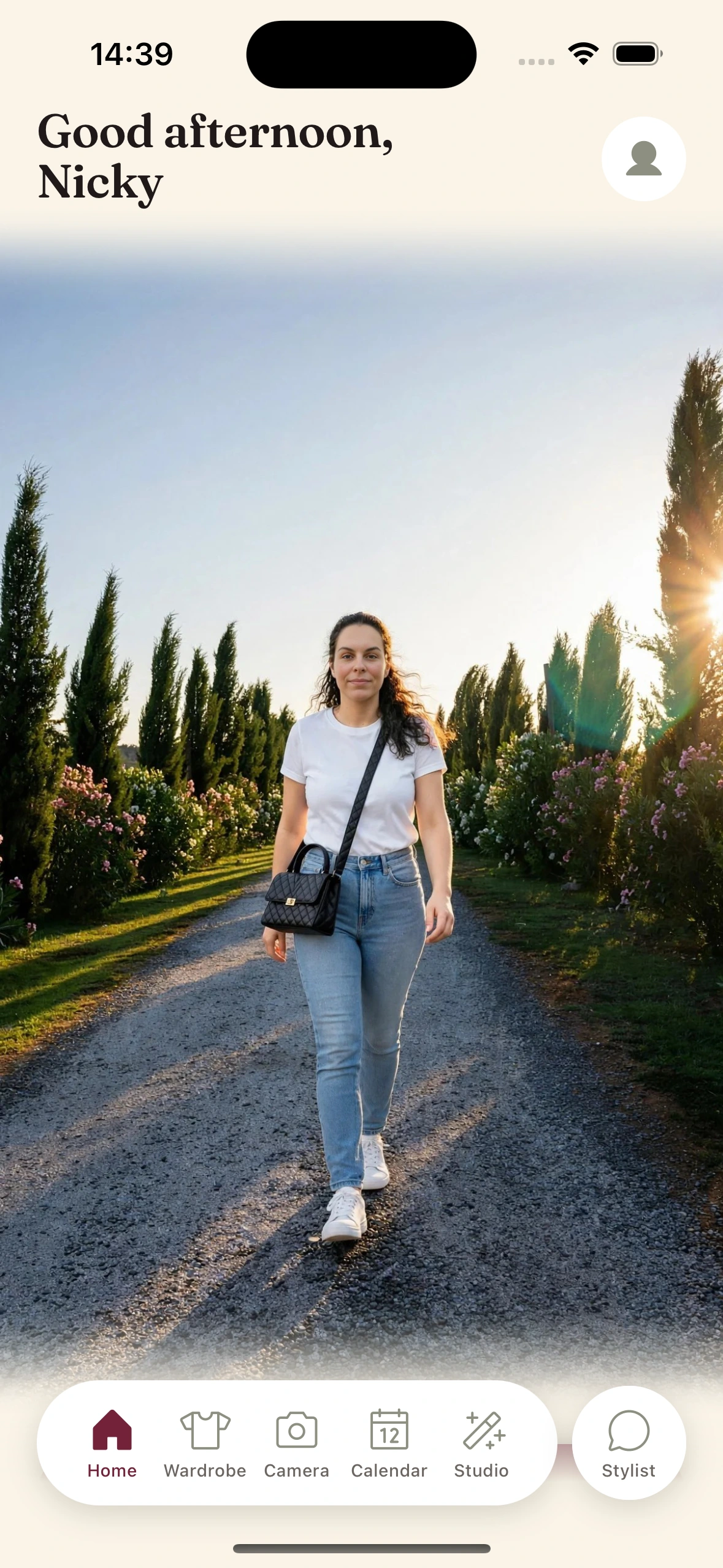
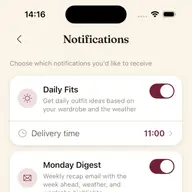
Daily Fit puts together an outfit from your own closet each morning, matched to the forecast and, if you connect it, your calendar. It's ready by 7:30 by default, by email, push or both. Calendar event details stay on your device.
Nothing is re-worn back to back, so yesterday's outfit doesn't come around again today, even on mornings you don't think about clothes at all. Daily Fit picks the outfit. Bringing back forgotten pieces is what Deep Cuts is for. Set up your Daily Fit covers the ready-time, the channels and the calendar.
06
Log what you actually wear.
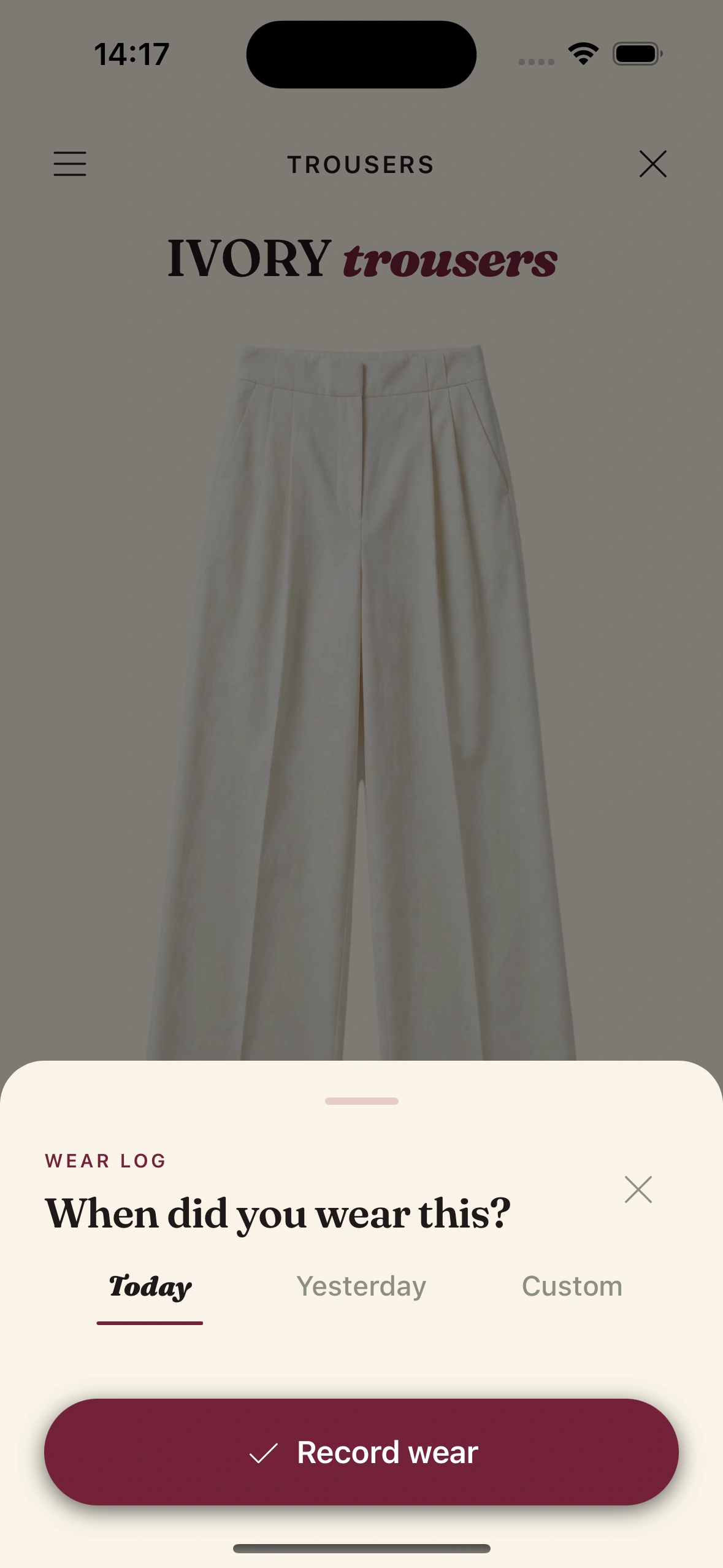
Insights can only count the wears it knows about. Open a piece, choose when you wore it (today, yesterday or a custom date) and tap Record wear.
You won't log everything by hand. A Daily Fit you tap to wear counts, and events on a connected calendar feed wear tracking too. For pieces you'd rather not log at all, set a predicted wear frequency and Clottr keeps track of the likely wears for you.
Wore something other than the suggestion? Log it anyway. An honest log is what makes the next step worth doing.
07
Look back after 30 days.
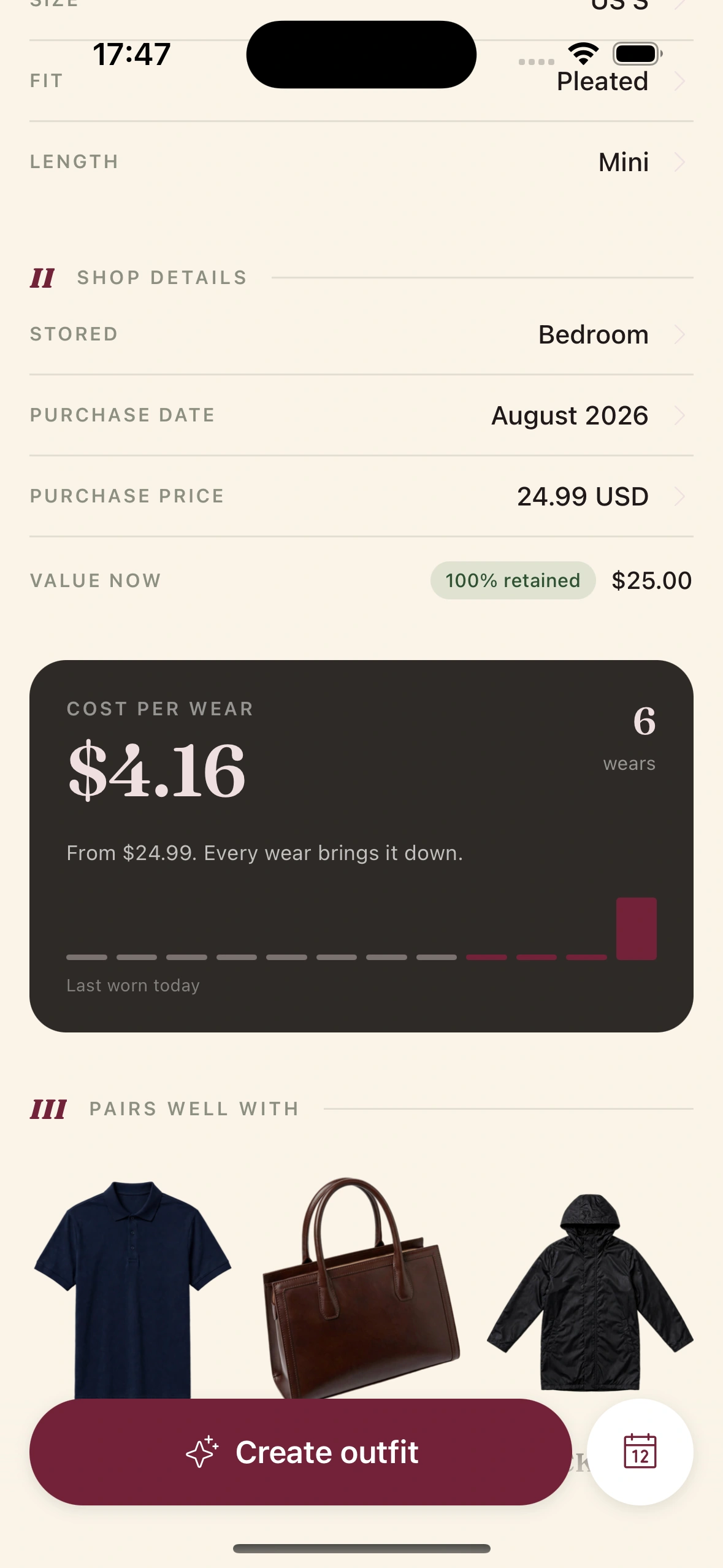
Give it a month of logging, then sit down with Insights. Open a piece to see its cost-per-wear: the price divided by the times you've worn it, falling with every wear. Then look across the whole closet:
- ·Which pieces did you reach for again and again?
- ·Which forgotten pieces made it back into an outfit?
- ·Which pieces haven't been worn at all?
What happens to that last group is your call. Wear tracking shows you what you never reach for; it doesn't decide what stays. And before you buy something new, Should I Buy shows the similar pieces you already own, with their wear count and cost-per-wear.
Tips & gotchas
What to expect, week one to month one.
Week one is a baseline.
With less than a week of logged wears, the Insights tab has little to report: no color trend yet, no most-worn piece. That's normal. Keep logging and it gets more useful as wear data builds up; after a few weeks it's noticeably richer.
Month one is when patterns show.
A month of logging shows which pieces carry your week and which never leave the hanger. Cost-per-wear starts to mean something too: a piece you wear often keeps dropping, while one you skip stays expensive.
Out of season isn't neglected.
Deep Cuts only surfaces pieces that suit today, so a piece you haven't worn because it's out of season isn't a problem to solve. Judge each piece against its season, not the whole year.
What Clottr can't do.
Clottr can't see what you wear unless a tapped Daily Fit, a calendar event, a manual log or a predicted wear frequency tells it. And it won't choose what you keep: it shows you the pattern, and you make the call.
Keep reading
Guide
Read your wardrobe insights
The Insights tab part by part, from the daily beats to the Monday recap.
Guide
Set up your Daily Fit
Pick the ready-time, the channels and the calendar connection for your morning outfit.
Feature
Wardrobe Insights
Cost-per-wear on every piece, your palette by color family, and the pieces you never reach for.

Blog
Why your closet is full and you still have nothing to wear
Five reasons a full closet still leaves you with nothing to wear, and a fix for each.
Frequently Asked Questions
How long until Wardrobe Insights are useful?
After a few weeks of logging. In the first week there is little to report, because Insights only knows the wears it has seen. The more you log, the more useful it gets.
What if I don't like my Daily Fit?
Swipe for another, or open the canvas and remix the look. Every option is built from clothes you already own. If you end up wearing something else, log it, so your wear data stays accurate.
How does Clottr know which clothes I wear?
Four sources feed it: the Daily Fits you tap to wear, events on a connected calendar, wears you log by hand, and the predicted wear frequency you can set on each piece. No spreadsheet needed.
Does Clottr tell me which clothes to get rid of?
No. It shows you the evidence, and the decision stays yours. Wear tracking shows which pieces you reach for and which you never do, and cost-per-wear splits each piece's price across the times you've worn it. Before you let a piece go, try building an outfit around it on the canvas.
How many clothes do I need to add?
About 30 items is enough to start; 50-60 is the sweet spot. Add the pieces you rarely wear as well as your favorites: Deep Cuts can only bring back what Clottr knows you own.
See everything you own. Then wear it.
Join early. Discounted for life.